

Overview
What you’ll build
A bidirectional integration enabling:- Automatic recording-to-opportunity matching
- CRM context in Siro (customer names, deal amounts, outcomes)
- Entity extraction data flowing back to your CRM
Time estimate
4-8 hours for a developer familiar with REST APIsPrerequisites
- API development experience
- Admin access to your Siro workspace
- Your system exposes appointment/opportunity data via API or database
Step 1: Get Your Siro API Credentials
Preferred: a client app. One access token works on both the org-wide and user-scoped APIs.- Create a client app in the Siro web app (org admin). Store
client_idandclient_secret. - Exchange them at
https://auth.siro.ai/oauth2/token. - Send
Authorization: Bearer <access-token>on org-wide (functions.siro.ai) calls. Sendx-siro-auth-token: <access-token>on user-scoped (api.siro.ai) calls.
API Base URL
Most API calls use:Step 2: Understand the Basics of the Data Model
Siro’s integration data model maps to standard CRM concepts.CRM entity IDs
- Siro-internal id (
id): The UUID Siro stores for a synced CRM row (account, engagement, opportunity, external user, etc.). Use this when an API accepts our primary key—for example when linking a recording to CRM entities—or when reading ids from webhooks and detail payloads. - CRM-native id (
externalId): The identifier in your CRM (for example a Salesforce Id). When you target entities byexternalId, also sendintegrationConnectionIdso Siro knows which CRM connection that id belongs to.
People: Siro Users vs External Users
- Siro User: Someone who can sign into your Siro workspace (web or mobile). This maps to a
SiroUserin our database. Examples: recordinguserIdon recording detail, webhooksiroUserId. - External User (same concept as CRM User): The synced representation of a rep or roster row from your CRM—the API resource named
User. Sync payloads includeexternalId,email, andname; Siro maps External Users to Siro Users for attribution (automatic match, or manually via People → Users → select a user → Integrations → Connect).
Key Relationship
The critical link is: Recording ↔ Engagement ↔ Opportunity AND/OR Account When you sync an Engagement to Siro with appointment details (time, location, rep), Siro can automatically match recordings to that engagement and surface the linked Opportunity context.Step 3: Sync Your Data to Siro
3.1 Link External Users to Siro Users
User linking happens automatically. When you sync engagements or opportunities, include each rep’s CRM identifiers onUser payloads (externalId, email, and name). Siro maps External Users to Siro Users by email or name match. Manual override: go to People → Users, select the user, and press Connect (or the edit icon) on the integration in their Integrations card.
3.2 Sync Appointments (Engagements)
This is the core of the integration. Syncing engagements enables appointment lists for reps, automatic recording linking, and CRM context for AI features. Endpoint:PUT /v1/integrations/sync/engagements • Full docs
Example request:
activityType: Valid values are MEETING, CALL, APPOINTMENT, EMAIL, TEXT, EVENT- Only MEETING, APPOINTMENT, and EVENT appear in the Appointment List feature
3.3 Sync Opportunities
Adds deal context (amount, disposition, customer name) to recordings. Endpoint:PUT /v1/integrations/sync/opportunities • Full docs
Example request:
3.4 Sync Accounts
Adds customer context (name, address, contact info) to recordings. Account syncing happens automatically when you include the nestedaccount object with an externalId in engagement or opportunity payloads. See the engagement example in 3.2 for the basic structure, or add optional fields like emailAddresses, phoneNumbers, and addresses as needed.
Step 4: Pull Data from Siro Back to Your System
Once recordings are created and linked, retrieve AI-generated insights. Siro supports two ways to receive this data:- Real-time webhooks (recommended) — subscribe to events on your Siro workspace and receive HTTP callbacks the moment a recording is processed and linked to a CRM engagement. Covered in sections 4.1–4.3 below.
- Polling — periodically query the engagement endpoint to check for linked recordings, then pull enriched data from separate endpoints. See Alternative: Polling Flow.
x-siro-auth-token. Legacy Siro OAuth still works there.
Client app setup (required for Recording Details & Entity Extractions)
Follow Authentication: create a client app in the Siro web app, thenPOST https://auth.siro.ai/oauth2/token. Grant recording and extraction access when you create the client.
4.1 Subscribe to Webhook Events
Siro emits two event types that together signal a recording is fully ready for downstream processing:
These events fire independently and may arrive in either order — the recording may be linked before processing finishes, or vice versa.
How to subscribe:
Webhook subscriptions are managed from the Webhooks page in the Siro dashboard.
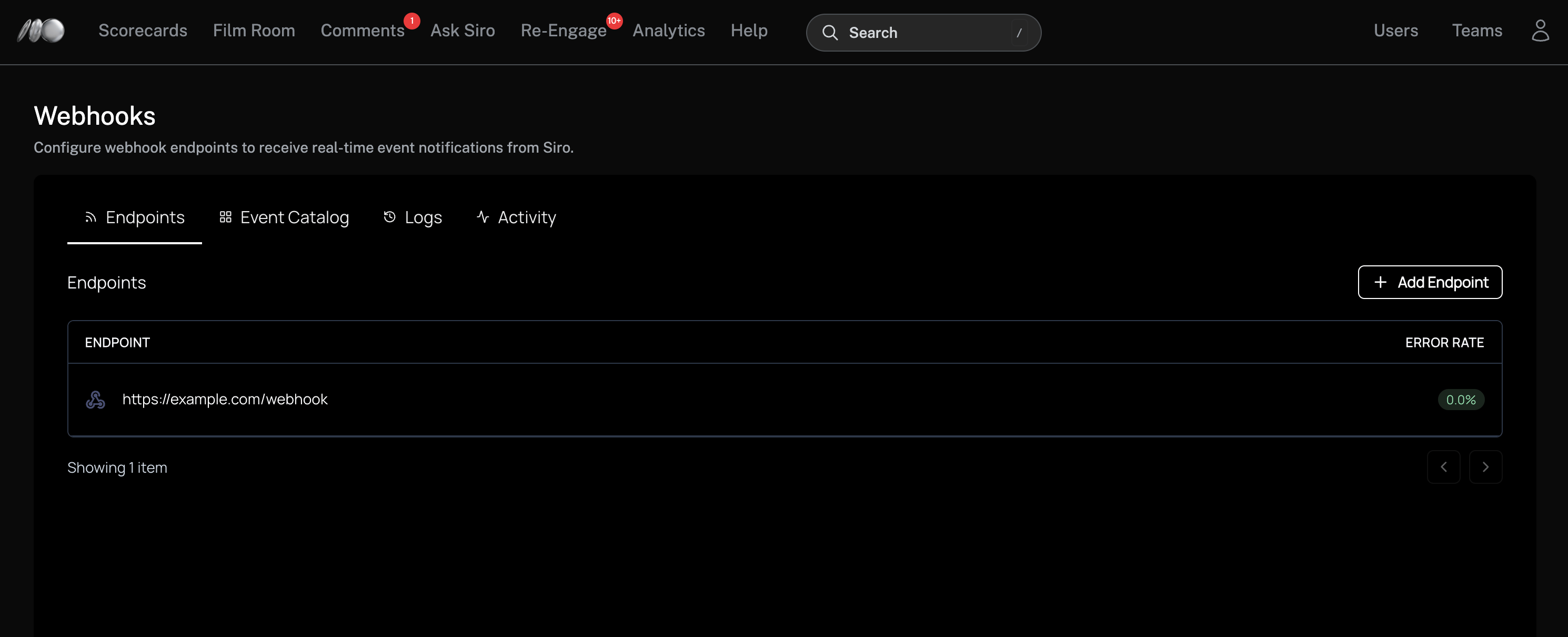
- As an org admin, open the Organization Admin Area from the top-right menu and select Webhooks. You’ll see the Endpoints list where all your configured webhooks are shown.
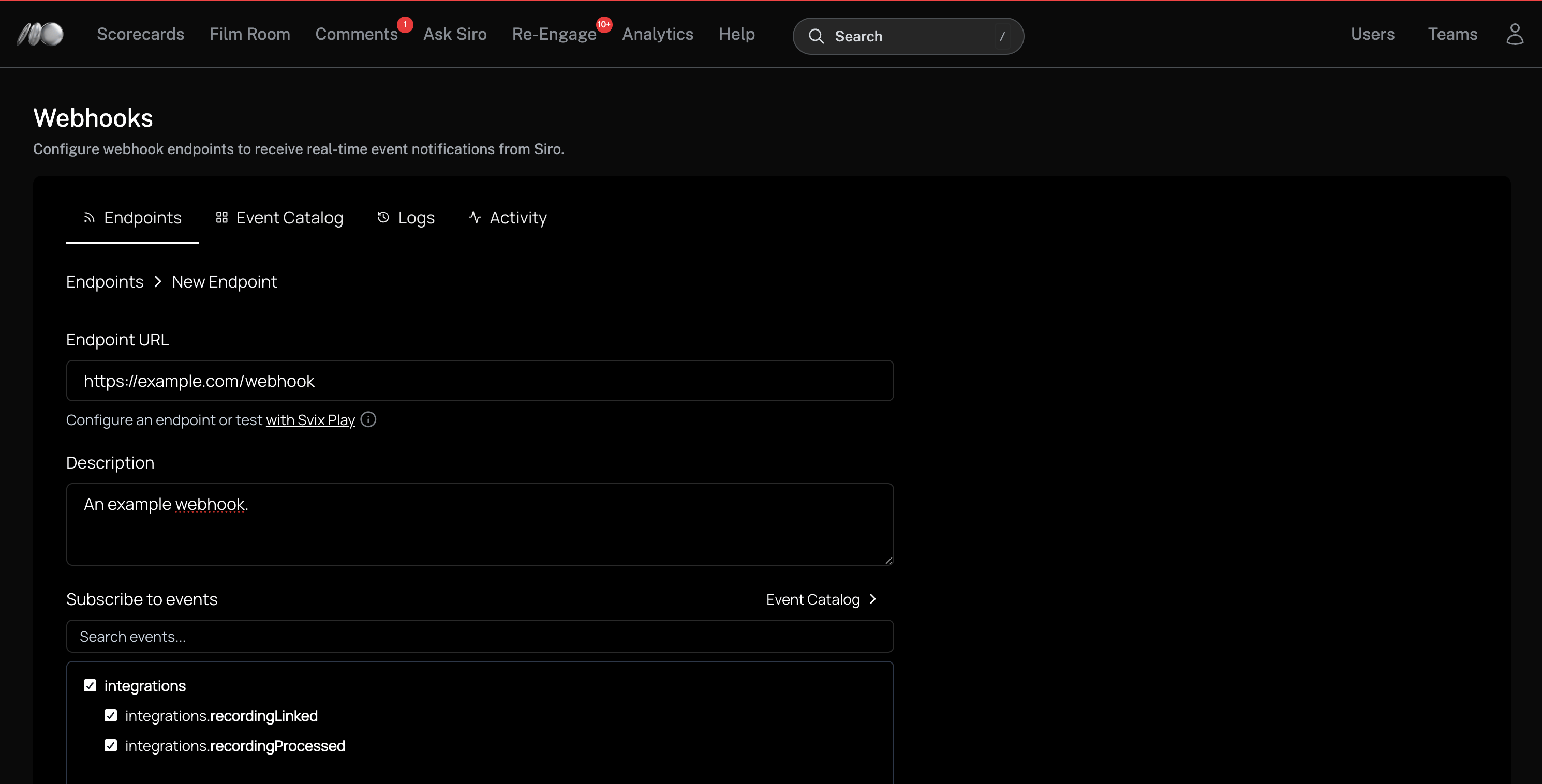
- Click + Add Endpoint. Fill in your Endpoint URL (the HTTPS URL where you want to receive events), an optional Description, and select the events to subscribe to. Check both integrations.recordingLinked and integrations.recordingProcessed.
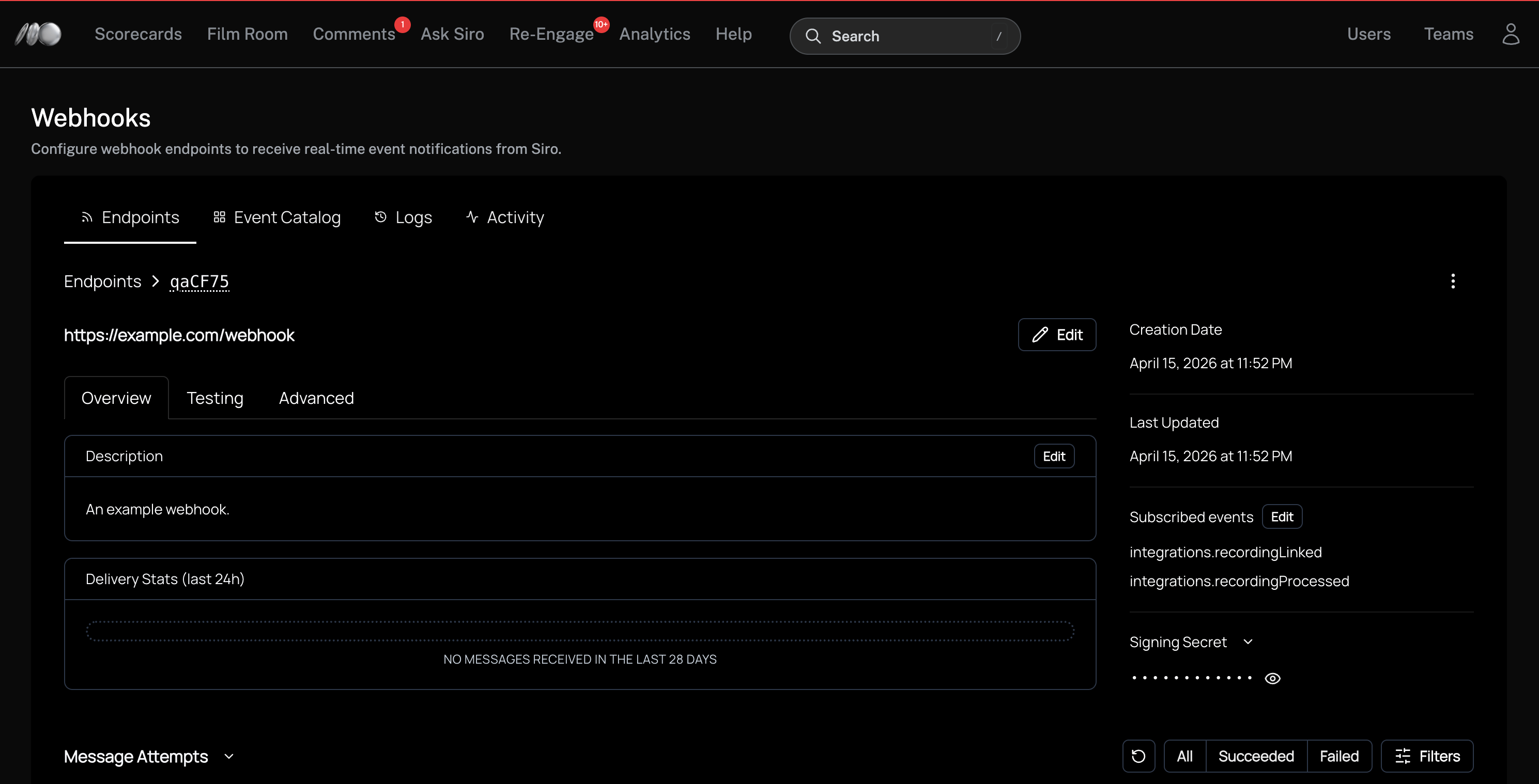
- After saving, you’ll see the endpoint detail page with your Signing Secret. Copy this secret — you’ll use it to verify that incoming webhook payloads are authentic.
The recommended approach is to use the official Svix library, which handles signature construction and timestamp tolerance for you.
4.2 Handle Webhook Payloads
Both event types share the same payload shape:recordingProcessed/recordingLinked— current boolean state of each condition. Every payload reports both, regardless of which event was emitted.siroUserId— Siro User id for the rep associated with the recording.siroTeamId— Siro Team id that owns the recording. Use it to ignore recordings from teams your integration doesn’t care about. Recordings are owned by a single team; omitted when the recording has no team. Matches theteamIdreturned by Get Recording Details.crm.users[]— linked External Users;idis Siro-internal for that user row,externalIdis the id from your CRM (when set).crm.engagement/crm.opportunity/crm.account— each includes Siro-internalidplus CRM-nativeexternalIdwhere applicable.crm.engagement.externalId— the appointment ID you originally synced (from 3.2).crm.opportunity.externalId— the opportunity ID you originally synced (from 3.3).
recordingProcessed and recordingLinked are true.
Because every delivery reports current state for both conditions, the handler for whichever event fires last will naturally observe true / true — no correlation or state machine is needed.
Example handler:
recordingId if your downstream side-effects aren’t idempotent.
4.3 Get Recording Details (Summary + Entity Extractions)
Endpoint:GET /v1/core/recordings/{recordingId}
Base URL: https://api.siro.ai
Note: This base URL is different from the main external API (https://functions.siro.ai/api-externalApi/v1). It matches the base used by the Entity Extractions endpoint (4.5).
Authentication: x-siro-auth-token with a client app access token — see Authentication. Legacy Siro OAuth tokens use the same header.
Query parameters:
Both default to
false.
Example request:
userId is the Siro User id; see People: Siro Users vs External Users in Step 2.)
Alternative: Polling Flow
If webhooks aren’t an option for your environment, use the engagement endpoint to poll for linked recordings and pull enriched data from the endpoints below. Entity extractions (4.5) are user-scoped; send the client app token asx-siro-auth-token.
4.4 Get Linked Recording for an Engagement
Endpoint:GET /v1/integrations/engagements/{id} • Full docs
Response includes:
recordingId to fetch detailed data.
4.5 Get Entity Extractions (CRM Autofill Data)
Endpoint:GET /v1/core/entities/extractions/{recordingId} • Full docs
Base URL: https://api.siro.ai
Note: This base URL is different from other API endpoints.
Authentication: x-siro-auth-token with a client app access token. Legacy Siro OAuth tokens use the same header.
Response example:
4.6 Get Recording Summaries
Endpoint:GET /v1/core/recordings/{recordingId}/summaries
Response:
Auto Start/Stop via Deep Linking (Optional)
Start Siro recordings directly from your mobile app: URL format:appointmentId to link the recording to the engagement and opportunityId to link the associated opportunity immediately.
Next Steps
- Test it: Sync a test appointment, record a conversation at that time, and verify CRM context appears
- Automate syncs: Use real-time webhooks (recommended) or batch jobs every 10 minutes
- Custom fields: Work with your CSM to configure custom entity extraction fields
- Troubleshoot: If recordings aren’t linking, check People → Users and confirm each rep shows the expected entry in the Integrations column
- Train your team: Show reps how recordings link to CRM records